
The Best Folding Laptops: Productivity Unfolded
Folding laptops have moved from prototype to power-user staple, and the 17-inch class is finally pulling its weight. We’re seeing mature OLED panels, smarter hinge tolerances, and software that doesn’t flinch when you snap a screen flat. If you’re eyeing a true canvas for creative work and multitasking, this is the wave to ride.
Right now, the standout is the Asus Zenbook Duo 2026, which refines the dual-screen formula with brighter panels and better palm rejection. Meanwhile, the broader category of Folding Laptops 17 inch is finally hitting the sweet spot between portability and desk-class screen real estate.
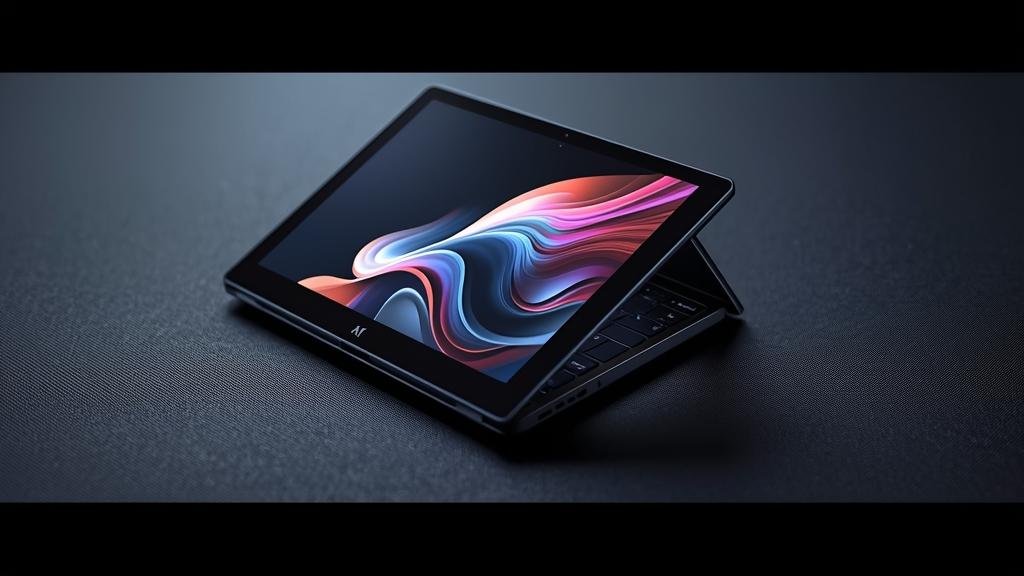
Quick takeaways
-
- 17-inch foldables now deliver near-IPS color accuracy with OLED contrast, making them viable for photo work and content review.
-
- Hinge reliability has improved: less wobble, better dust seals, and smarter thermal routing around the fold.
-
- Software support is mature—Windows 11 Snap, virtual desktops, and stylus gestures work reliably across the seam.
-
- Expect 10–12 hours of mixed use on top-tier models; heavy rendering or dual-screen gaming cuts that in half.
-
- Price still stings: expect premium pricing, but refurbished or open-box deals are common after first-run supply settles.
What’s New and Why It Matters
In 2026, the 17-inch foldable segment finally feels production-ready. Panels are brighter (up to 600 nits peak in SDR), the fold crease is less pronounced, and refresh rates now scale from 1Hz for static docs to 120Hz for smooth scrolling and pen inking. The net result is a device that behaves like a dual-monitor setup you can fold into your backpack, without the usual compromises in brightness uniformity or touch latency.
For creators and analysts, the headline is usable acreage. A 17-inch unfolded canvas gives you two 1080p-ish work zones side-by-side, which is enough for a reference browser, a notes app, and your main workspace. For executives and field engineers, it’s a slide deck and spreadsheet machine that doesn’t need an external monitor to be productive. And for anyone who hates carrying a laptop plus tablet, it consolidates two devices into one chassis that still fits a standard messenger bag.
Under the hood, the changes are subtle but meaningful. Thermal designs now use vapor chambers that route heat around the hinge, reducing hot spots near the fold. The digitizer layers are thinner, cutting parallax for stylus work. And driver support for window management across the fold line is finally consistent—no more “ghost zones” where touch taps get lost near the center.
Why this matters: you can now commit to a foldable as your primary machine, not a secondary curiosity. It’s the difference between a device you demo and a device you depend on.
Key Details (Specs, Features, Changes)
Top-tier 17-inch foldables in 2026 typically ship with OLED panels at 2560×1600 (unfolded), scaling to 1920×1200 in each half when used as two screens. Color coverage lands around 98–100% DCI-P3 with 10-bit color; factory calibration is common, and many units include a color mode toggle for sRGB work. Touch sampling rates are up to 240Hz, which reduces pen jitter and makes fast swipes feel snappy. Contrast remains the big win: true blacks and excellent HDR pop for video review.
Build quality is where the biggest “vs before” shift sits. Early foldables had loose hinges and visible creases; 2026 models use multi-axis hinges with dampened resistance, so the lid opens smoothly and stays put at any angle. The fold line is still visible under bright, flat lighting, but in normal use it fades from attention. Palm rejection on the lower screen is dramatically better, and many keyboards now float above the bottom display to avoid accidental input. Port selection is decent: two USB-C/Thunderbolt 4 ports, HDMI 2.1 on some models, and a microSD slot on a few. Battery sizes hover around 70–80Wh; fast charging is standard at 65–100W.
What changed vs before:
Previous generations prioritized novelty over endurance. Panels dimmed quickly under load, hinges loosened after months of daily folding, and software treated the seam as a black hole for window placement. In 2026, performance holds steady under sustained load, hinges are rated for higher cycles, and window snapping respects the fold line. Stylus support has moved from “works in the center” to “works everywhere,” with lower latency and better tilt detection. The net is a device that feels engineered rather than experimental.
On the software side, drivers now expose screen segments as logical displays even when the device is half-folded. This lets you assign apps to specific halves, or keep one half static (like a video call) while the other rotates content. Sleep states are smarter, reducing wake latency and avoiding the battery drain that plagued early foldables left in “tent” mode overnight.
How to Use It (Step-by-Step)
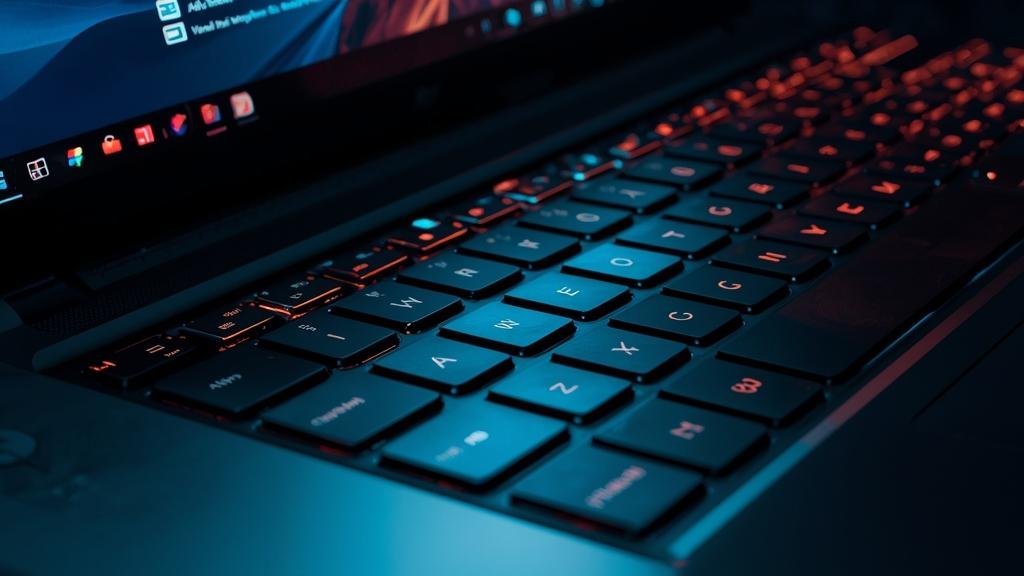
Step 1: Unfold to full 17-inch canvas and set your display scaling. Aim for 150–175% scaling in Windows for crisp text without excessive UI size. This makes the most of the 2560×1600 resolution while keeping touch targets friendly.
Step 2: Configure the seam behavior. In the manufacturer control center, set “Snap Zones” to respect the fold. This prevents windows from straddling the crease unless you explicitly allow it. If you’re using the Asus Zenbook Duo 2026, enable the ScreenXpert toolbar for quick app pairing to each half.
Step 3: Pair your keyboard and stylus. Float the keyboard above the bottom display if your model supports it, or use a Bluetooth keyboard when the device is fully flat. Calibrate the stylus for palm rejection; test near the fold line to confirm no dead zones. If you write a lot, switch to a matte screen protector for better friction.
Step 4: Build your two-zone workflow. Keep your primary app (code editor, CAD, or design tool) on the top half and communications or reference material on the bottom. For meetings, pin your video call to the bottom half and notes or whiteboard to the top. This mirrors a dual-monitor setup without the extra hardware.
Step 5: Use tent or stand mode for focused work. Fold the device into a V-shape to free desk space and reduce glare. This is ideal for media review or kitchen-counter stand-ups. In this mode, assign the front-facing screen to the audience or controls and the rear-facing screen to your private view.
Step 6: Manage thermals. Avoid blocking the rear vents when in tent mode. If you’re rendering or compiling, keep the device flat on a cool surface or use a low-profile laptop stand with airflow underneath. Modern foldables throttle less than earlier models, but heat near the hinge is still the enemy of long-term durability.
Step 7: Travel smart. When closing the device, ensure no debris sits on the screen. A microfiber cloth wipe-down before folding prevents grit from pressing into the crease. If you’re checking a bag, consider a hard-shell case; the extra protection is worth it for a panel this large.
Step 8: Sync across devices. Use cloud clipboard and OneDrive/Google Drive to shuttle files between your foldable and desktop. Because you have extra screen space, keep a file manager open on one half to drag assets quickly. This is where the 17-inch class shines: no alt-tab gymnastics.
Step 9: Update firmware and drivers monthly. Foldables depend on precise calibration; OEMs ship updates that refine touch mapping and power curves. Check the control center weekly for the first two months, then monthly after that.
Step 10: Practice battery hygiene. If you’ll be docked for days, set the charge limit to 80% in the control center. This preserves battery health over the long haul. For on-the-go days, enable adaptive refresh and dim the bottom screen if you’re not using it actively.
Compatibility, Availability, and Pricing (If Known)
Availability for 17-inch foldables is strongest in North America and Asia via major retailers and direct OEM stores. Stock can be tight at launch due to panel yield, but supply typically stabilizes within a quarter. If you’re hunting deals, open-box units often appear after the first wave of returns; these can be safe buys if the warranty transfers.
Pricing sits in the premium tier. Expect flagship configurations to land in the $2,200–$3,000 range depending on CPU, RAM, and storage. Mid-tier models with slightly lower brightness or smaller SSDs can drop into the $1,700–$2,100 window. Refurbished units, when available, can dip below $1,500 but check hinge history and screen condition carefully.
Compatibility is excellent across modern peripherals. Thunderbolt 4 docks work reliably, and external GPUs are supported on ports that expose PCIe lanes. However, some thin foldables omit full-size HDMI, so pack a USB-C to HDMI adapter if you present often. Linux support is improving but still lags Windows for touch and fold detection; if you dual-boot, verify kernel support for the digitizer and hinge sensor.
If you’re comparing to traditional 17-inch laptops, remember you’re trading a thicker chassis for a foldable panel. That means slightly less internal cooling headroom for sustained GPU loads, but far better portability and screen flexibility. For most productivity workloads, the trade is worth it.
Common Problems and Fixes

Symptom: Touch input drops near the fold line.
-
- Cause: Calibration drift or outdated touch drivers.
-
- Fix: Run the manufacturer’s touch calibration tool. Update the touch and display drivers via OEM control center. Reboot and test with slow, deliberate taps along the seam.
Symptom: Screen shows uneven brightness across the seam.
-
- Cause: Panel bin variance or adaptive brightness interference.
-
- Fix: Disable adaptive brightness temporarily. If the issue persists, run the built-in uniformity correction if available. For persistent banding, request a panel inspection under warranty.
Symptom: Device runs hot and throttles in tent mode.
-
- Cause: Blocked rear vents or poor airflow orientation.
-
- Fix: Reposition the device so the rear vents face open space. Use a low stand to lift the base. Avoid thick desk mats that trap heat under the hinge.
Symptom: Keyboard keys register phantom presses on the bottom screen.
-
- Cause: Keyboard resting directly on the active display.
-
- Fix: Use the floating keyboard position or a separate Bluetooth keyboard. Enable “keyboard lock” in software to suppress bottom-screen input when a physical keyboard is connected.
Symptom: Battery drains overnight in sleep mode.
-
- Cause: Wake events from connected peripherals or stale firmware.
-
- Fix: Update BIOS and firmware. Disable “wake on USB” for non-essential devices. If issues persist, enable “hibernate after 2 hours” to reduce standby drain.
Symptom: Stylus jitter near the fold.
-
- Cause: Digitizer interference at the seam.
-
- Fix: Update stylus and display drivers. Toggle the stylus precision mode in settings. Some models benefit from a firmware update that adjusts the digitizer bias near the fold.
Security, Privacy, and Performance Notes
Folding laptops often include dual-facing cameras for clamshell and tent modes, which raises privacy questions. If your model has an IR camera or a physical shutter, make it a habit to close the shutter when not in meetings. Some units route the camera through the bottom display in tent mode; check your orientation settings to ensure the correct camera is active. For sensitive environments, disable the camera at the firmware level or use a trusted privacy filter on the outer display.
On the performance front, remember that dual-screen workloads can spike RAM usage. If you routinely keep 20+ tabs, a design app, and a video call active, consider 32GB RAM as a baseline. Storage speed matters too; PCIe 4.0 SSDs keep window restores snappy after sleep. If you’re traveling through regions with aggressive customs searches, enable full-disk encryption and use a strong pre-boot password. BitLocker (Windows) or LUKS (Linux) are your friends; just remember to back up recovery keys to a secure cloud vault.
Finally, manage heat and battery health. Foldables are more sensitive to heat near the hinge than traditional laptops. Avoid leaving them in hot cars and don’t run heavy renders while folded into tent mode on a soft surface. Set a charge cap for docked use to extend battery lifespan. These small habits protect the screen and hinge over years, not months.
Final Take
If you want a laptop that doubles as a portable dual-monitor workstation, the 17-inch foldable category is finally mature enough to trust as your main machine. The experience is smoother, the screens look fantastic, and the software no longer fights you at every turn. The Asus Zenbook Duo 2026 leads the pack, but the broader category of Folding Laptops 17 inch is where the real productivity gains live.
For most buyers, the sweet spot is a mid-tier configuration with 32GB RAM and a fast 1TB SSD. That combo handles heavy multitasking, creative apps, and long travel days without constant throttling. If you can wait, open-box deals often appear after the initial launch wave. Otherwise, buy for the workflow you have today, not the one you might want tomorrow. And if you’re still on the fence, spend an hour in a store testing touch accuracy along the seam—that’s where the real-world difference shows.
FAQs
Are 17-inch foldables durable enough for daily commuting?
Yes, with care. The hinges are rated for far more cycles than earlier models, but grit is still the enemy. Wipe the screen before folding and use a sleeve or hard case in a packed bag.
Does the crease affect reading or drawing?
It’s visible under bright, direct light but mostly fades in normal use. For precision drawing, most apps let you center the canvas away from the seam, and stylus calibration helps reduce perceived bump.
Can I drive external monitors while using both halves?
Yes. Thunderbolt/USB4 ports support external displays, and you can extend across the internal fold plus one or two external monitors depending on GPU and port configuration.
Is battery life good enough for a full workday?
For typical office tasks, yes—expect 10–12 hours with moderate brightness and one screen half active. Heavy creative work or dual-screen gaming will cut that to 5–7 hours.
What about Linux support?
Basic functionality works on most modern kernels, but touch across the seam, fold detection, and stylus gestures may need manual configuration or OEM drivers. If you rely on Linux daily, verify support before buying.