
What’s New and Why It Matters
Valve is quietly pushing a prototype BCI pipeline that lets your neural signals act as a first-class input alongside mouse, keyboard, and controller. This isn’t a lab demo. Valve’s internal playtests show basic thought-based UI navigation and rapid macro firing in supported titles, with a focus on low-latency inference and minimal cognitive load. The early stack runs on standard PCs and ties into Steam Input, so remaps are straightforward for tinkerers.
The bigger story is platform alignment. Valve’s move pairs naturally with the Steam ecosystem and handhelds, hinting at a future where Brain-Computer Gaming becomes an accessibility-first option that scales from desktop rigs to portable play. Think toggles, not twitch. For competitive players, it’s about macro efficiency; for disabled gamers, it’s about finally retiring workarounds that never felt native.
Early dev logs point to a privacy-by-default stance: local inference first, optional cloud training, and explicit user consent for any telemetry. If Valve ships this as a Steam feature rather than a walled accessory, the ecosystem effect could be massive. That’s why the pairing of SteamDeck BCI with desktop rigs matters: the same control layer, same remaps, same library.
Quick takeaways
-
- Valve’s BCI project is real and targeting Steam Input integration, not just a research toy.
-
- First use cases are UI navigation, macros, and accessibility toggles, not raw aim.
-
- Local inference is prioritized; cloud training is opt-in and scoped.
-
- Latency is acceptable for macro play, not yet for twitch reflexes.
-
- Support is expected to span desktop and handhelds, including Steam Deck.
Key Details (Specs, Features, Changes)
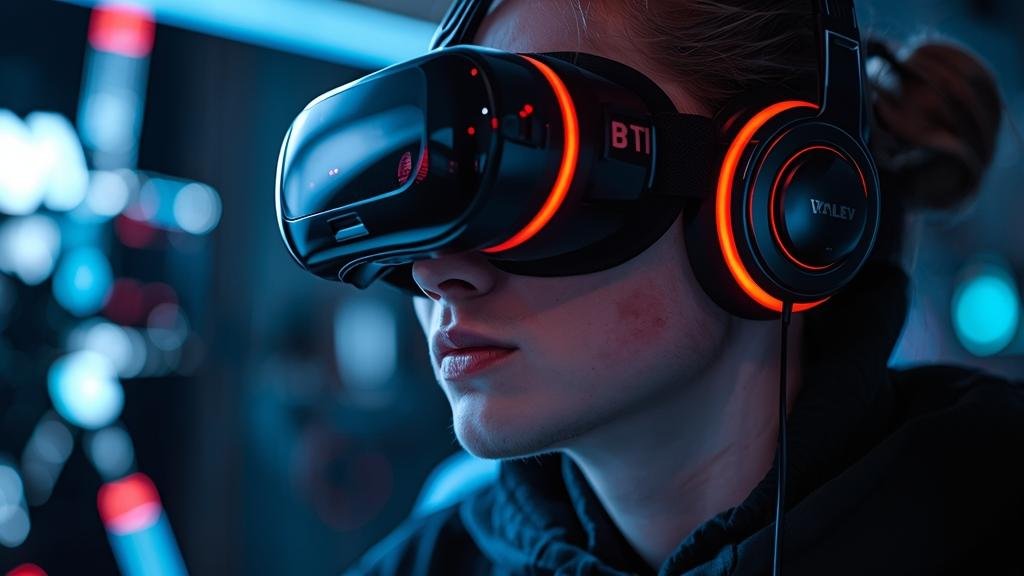
From what Valve has shared to developers, the BCI stack runs as a local service that samples EEG via a supported headset and converts intent into Steam Input actions. The headline change is the new “Neural Action Layer,” which sits next to the existing controller and keyboard layers. Instead of raw keybinds, you map “thought triggers” to actions like “quick ping,” “open map,” or “toggle HUD.” The system uses a conservative confidence threshold to avoid accidental firing, and it exposes a “cooldown” setting to prevent spam.
Compared to generic BCI SDKs, Valve’s approach is tightly coupled to Steam Input. That means you get per-game profiles, community remaps, and even chorded actions (e.g., hold a neural trigger + face button). It also means telemetry stays inside the Steam privacy controls you already know. Before this, BCI add-ons were third-party, game-specific, and required custom drivers. Now, you plug in a supported headset, run the calibration wizard once, and your profiles follow your library.
What changed vs before
Previously, using brain signals in games meant hacking together drivers, mapping in external tools, and praying the game didn’t patch your workaround away. Calibration was tedious, false positives were common, and updates broke everything. Valve’s stack moves the heavy lifting into Steam Input and the OS layer, with standardized profiles and a system-wide overlay for status and tuning.
Performance is also different. Local inference keeps latency predictable and avoids cloud round trips. Confidence gating and per-game sensitivity curves reduce accidental triggers. And because it hooks into Steam’s existing input system, you can mix neural triggers with controller buttons, gyro, or mouse, making it practical rather than gimmicky.
How to Use It (Step-by-Step)

Below is a practical path to get from unboxing to your first mapped action. These steps assume you have a supported BCI headset and the latest Steam client. If you’re on Steam Deck, switch to Desktop Mode for initial setup.
-
- Install the BCI plugin
Open Steam → Settings → Controller → BCI Support. Install the “Neural Input Service” plugin. Restart Steam.
- Install the BCI plugin
-
- Pair your headset
Use Bluetooth or wired connection per the device’s manual. Confirm signal quality in the BCI Health overlay (Steam overlay → BCI tab). Aim for a clean signal with low noise.
- Pair your headset
-
- Run the one-time calibration
Follow the guided calibration: relax, focus on a single intent (e.g., “toggle map”), then release. Repeat 6–8 times. The system learns your signal pattern. Keep sessions short to avoid fatigue.
- Run the one-time calibration
-
- Create a profile in Steam Input
For a specific game, open Controller Config → BCI Layer. Map intents to actions: “Focus” to Ping, “Release” to Toggle HUD, “Hold” to Stealth Mode. Use chords for safety.
- Create a profile in Steam Input
-
- Set confidence and cooldown
Start conservative: confidence 80%+, cooldown 1.5s. Test in a sandbox mode or training room. Increase sensitivity only if false negatives are frequent.
- Set confidence and cooldown
-
- Test in-game
Use the overlay to watch real-time confidence and latency. If inputs feel late, lower the cooldown and ensure no other apps are hogging CPU.
- Test in-game
-
- Iterate and share
Export the profile to the community. Borrow proven profiles for similar genres (e.g., “RPG Navigation,” “RTS Pings”).
- Iterate and share
Pro tips
-
- Start with non-combat actions: menus, pings, emotes, camera modes.
-
- Use “double-confirm” for risky actions (two distinct intents or a neural + button chord).
-
- Avoid training while tired or caffeinated; your baseline shifts.
-
- Keep firmware and drivers updated; BCI hardware sees frequent calibration improvements.
Real-world examples
-
- Strategy: Neural ping to mark targets; hold intent to show advanced orders.
-
- RPG: Toggle quest log or inventory without reaching for keys.
-
- Accessibility: Replace complex combos with a single trained intent, mapped to a macro.
For Brain-Computer Gaming on handhelds, the same profiles sync to your account. Pair a SteamDeck BCI setup and you’re ready for couch play without retraining.
Compatibility, Availability, and Pricing (If Known)
Valve has not announced official hardware bundles or retail pricing. Based on dev notes, the software layer will be a free Steam update. Hardware compatibility appears to target common consumer EEG headsets with open SDKs; proprietary “closed” devices may require vendor drivers.
Platform support is expected to include Windows and Linux (including SteamOS). Mac support is not confirmed. For Steam Deck, initial setup is best done in Desktop Mode, but runtime use should work in Gaming Mode once the service is active.
Availability for public beta is likely staged, starting with developer outreach and widening to opt-in users. If you rely on BCI for accessibility, keep an eye on Steam’s accessibility channels for early access requests. Pricing for headsets varies widely; budget for a quality dry-electrode unit if you plan to use this daily.
Common Problems and Fixes
Symptom: Calibration fails or accuracy is low.
Cause: Poor electrode contact, high ambient noise, or user fatigue.
Fix steps:
-
- Clean electrodes and ensure proper fit; use conductive gel if the device supports it.
-
- Reduce environmental electrical noise (unplug chargers, avoid fluorescent lights).
-
- Shorten calibration to 5-minute sessions; take breaks between runs.
-
- Retrain with a distinct, repeatable mental pattern (avoid ambiguous intents).
Symptom: Inputs fire accidentally or at the wrong time.
Cause: Sensitivity too high or overlapping intents.
Fix steps:
-
- Raise confidence threshold to 80–90%.
-
- Enable cooldown of at least 1.5s.
-
- Use chords (neural + physical button) for critical actions.
-
- Rename or separate ambiguous intents (e.g., “Focus” vs “Select”).
Symptom: High latency or stuttering inputs.
Cause: CPU contention, driver issues, or USB/Bluetooth bandwidth problems.
Fix steps:
-
- Close background apps; set Steam Input Service to high priority.
-
- Use wired connection if possible; avoid shared USB hubs.
-
- Update headset firmware and GPU drivers; reinstall the BCI plugin.
-
- Check the BCI Health overlay for signal dropouts and reseat electrodes.
Symptom: Profile not syncing across devices.
Cause: Cloud sync disabled or version mismatch.
Fix steps:
-
- Enable Steam Cloud for Controller Configs.
-
- Update Steam on both devices; ensure the BCI plugin is installed.
-
- Resync from Settings → Controller → Cloud Sync.
Symptom: Game updates break mappings.
Cause: Input layer changes or anti-cheat restrictions.
Fix steps:
-
- Verify integrity of game files; reapply the BCI layer in Steam Input.
-
- Use overlay-safe modes; avoid injecting into protected processes.
-
- Check community profiles for updated mappings post-patch.
Security, Privacy, and Performance Notes
BCI data is sensitive. Treat it like biometric input. Valve’s design emphasizes local inference: raw EEG is processed on-device, and only action outcomes (e.g., “ping fired”) are logged unless you opt into telemetry. In Steam’s privacy settings, you can disable cloud training, clear stored baselines, and export your data.
Performance tradeoffs are real. Local inference keeps latency low but consumes CPU/GPU cycles. On desktops, this is negligible; on Steam Deck, expect a small battery hit. Limit background services and use the BCI Health overlay to monitor resource usage. For competitive play, keep neural actions to non-reflex tasks until the stack matures.
Security best practices:
-
- Lock down your Steam account with 2FA; BCI profiles can include powerful macros.
-
- Don’t share calibrated profiles with strangers; they may contain identifiable patterns.
-
- Disable BCI when not in use to prevent accidental data capture.
-
- Review per-game permissions; some anti-cheat systems may flag input overlays.
Final Take
Valve’s BCI project isn’t science fiction; it’s a practical input layer that sits inside Steam and makes neural control usable for real tasks. The first wave will be accessibility and macro convenience, not aim duels. If you’re a power user, start mapping non-critical actions and refine from there. If you’re an accessibility-first gamer, this could be the first time BCI feels native instead of bolted on.
Expect a learning curve, expect hardware variability, and expect iterative updates. But also expect momentum: once Brain-Computer Gaming is part of Steam Input, community profiles, tutorials, and vendor support will compound quickly. Pair it with a SteamDeck BCI setup and you’ve got a portable, living-room-friendly control scheme that grows with your library. Watch Steam’s announcements, grab a supported headset when the beta widens, and start with simple, satisfying mappings.
FAQs
Will this work with my current headset?
It depends on the device’s SDK support. Valve’s stack targets open, consumer-grade EEG hardware. Check your manufacturer’s documentation for real-time streaming compatibility and drivers.
Do I need internet for it to work?
Local inference works offline. Cloud training and profile sync require internet, but both are optional. You can keep everything on-device.
Can I use it for competitive shooters?
Not recommended for reflex-heavy tasks. The system is tuned for toggles, pings, and macros. Competitive integrity and anti-cheat policies may also restrict overlays in ranked modes.
What about battery life on Steam Deck?
Expect a small hit due to continuous sampling and inference. Use wired mode when possible, lower sampling rates, and disable BCI for non-BCI games to save power.
Is my brain data shared or sold?
Valve states no raw data is sold. Telemetry is opt-in and scoped. You can delete baselines and disable cloud features at any time in Steam’s privacy settings.