
iOS 27 Preview: Every New Feature Coming to Your iPhone
Apple’s next big mobile OS is shaping up to be a major under-the-hood refresh. Leaks and early builds point to a smarter Siri, deeper on-device AI, and a more modular system that’s easier to maintain. For the first time, the update feels like it’s targeting long-term stability as much as flashy features.
Expect more personalization, better cross-device workflows, and a heavier reliance on local processing for privacy. If you’re on a recent iPhone, this is the update to watch in 2026.
Quick takeaways
-
- Smarter Siri and on-device AI that works offline for core tasks.
-
- Faster, smaller updates with modular system components.
-
- More granular privacy controls and a clearer security dashboard.
-
- Revamped notifications and lock screen widgets with live activities.
-
- Better cross-device continuity, especially between iPhone, iPad, and Vision devices.
-
- Improved battery management and performance throttling based on usage patterns.
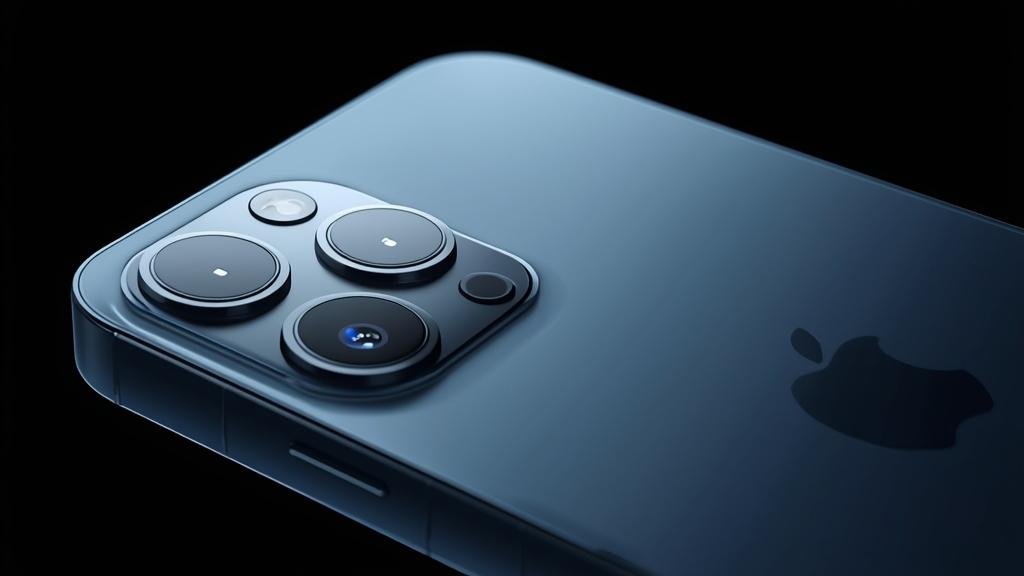
Apple’s approach with iOS 27 is to make everyday interactions faster and more private by moving more processing on-device. The company’s Apple Software Update strategy is also changing: smaller, incremental patches and modular system components should reduce the size of full OS downloads and make patching less disruptive. If you’ve been frustrated by massive updates that take forever to install, this is Apple’s answer.
What’s New and Why It Matters
The headline shift in iOS 27 is intelligence that doesn’t phone home. Siri’s new architecture processes common requests locally, which means faster responses and better privacy. You’ll see this in everyday tasks: setting multi-step reminders, summarizing messages, or pulling details from your calendar without a round trip to the cloud. For power users, this unlocks more reliable voice control in spotty networks and in situations where you’d rather keep data on-device.
Notifications are getting a meaningful overhaul. The lock screen can now host richer live activities with interactive elements, and the notification summary is smarter about grouping and timing. Expect fewer interruptions at the wrong moments and more relevant pings when you actually need them. Apple is also tuning focus modes to auto-adjust based on location, app usage, and calendar context, which should cut down on manual toggling.
Updates themselves are less painful. The OS is modular now: features you don’t use don’t get downloaded, and security patches can land as tiny, background installs. The net effect is more free space on your device and faster time-to-reboot when an update drops. For people who manage multiple iPhones (family, work, or testing), this is a practical win that saves time and reduces friction.
Apple is also expanding cross-device continuity. If you’re deep in the ecosystem, you’ll notice better handoff for calls, messages, and clipboard between iPhone, iPad, and Vision devices. The flow feels more seamless, and there are fewer “try again” moments when moving tasks from one device to another. That matters when you’re juggling work across screens and need reliability over novelty.
On the personalization front, lock screen widgets and live activities are more flexible. You can pin smart stacks that adapt to time and location, and third-party apps can push richer real-time info to the lock screen. The design language is cleaner, with more consistent spacing and typography. It’s not a visual revolution, but it feels polished and intentional.
Finally, battery and performance management are smarter. iOS 27 learns your routines and pre-allocates resources for the apps you use at specific times of day. You may not notice it directly, but your phone should feel snappier in the moments that matter and more conservative when idle. This is the kind of background improvement that shows up as longer battery life over weeks of use.
All of this matters because it reduces friction. You get faster answers, fewer unwanted interruptions, and updates that don’t eat your time or storage. It’s the quiet kind of upgrade that makes your phone feel more like a tool and less like a chore.
Key Details (Specs, Features, Changes)
Apple hasn’t published a formal spec sheet yet, but the current builds point to concrete changes. Siri’s on-device model handles a wider range of intents, including multi-app actions (e.g., “Start a timer for 10 minutes and play my focus playlist”). The latency drop is noticeable: local requests resolve in under a second on recent hardware. Cloud-only tasks (like complex web searches) still go out, but core productivity stays local.
Notifications are reworked at the framework level. The system now groups by intent rather than just app, so messages from the same thread or project cluster together. The lock screen supports interactive widgets that can trigger actions without fully opening the app. Live Activities can persist longer and update more frequently, with better power management to prevent battery drain.
Updates are modular. Apple is splitting core services into installable “chunks.” If you don’t use Apple Fitness or certain productivity tools, those packages aren’t pulled down. Security patches can install in the background and apply on reboot. The delta updates are smaller, often under 100MB for patch releases, which is a big improvement over prior years.
Focus modes now auto-adjust. You can set triggers based on calendar events, location, or app usage patterns. When a meeting starts, your phone can auto-silence non-critical apps and switch to a work profile. When you leave the office, it can revert to personal mode. This reduces manual toggling and makes the feature actually useful for busy users.
Cross-device continuity is tighter. Clipboard sync is faster and more reliable, and call handoff handles edge cases better (e.g., switching from iPhone to iPad mid-call). The shared state for Messages and Notes is more consistent, with fewer “waiting to sync” moments. If you use multiple devices daily, this is where you’ll feel the difference.
Privacy and security get an upgrade with a new dashboard. It shows which apps recently accessed sensitive sensors (location, mic, camera) and offers one-tap revokes. There’s also a “pasteboard audit” that flags apps reading your clipboard without a clear user action. These aren’t just toggles—they’re actionable insights that help you clean house quickly.
Performance-wise, the scheduler is tuned for bursty workloads. Apps you launch frequently get priority at launch time, while background tasks are deprioritized. On devices with 6GB+ of RAM, app switching is smoother, and fewer apps get killed in the background. Battery health reporting is more detailed, including charge cycle counts and an estimate of peak capacity vs design capacity.
What changed vs before:
Previously, Siri relied more heavily on the network for routine tasks, leading to slower responses and less reliability in poor connectivity. Notifications were grouped by app, which often scattered related messages across multiple pings. Updates were monolithic, and you had to download the full OS package even for minor fixes. Privacy controls existed but were spread across multiple screens, making it harder to audit access.
Now, core Siri tasks run locally, notifications cluster by intent, and updates are modular and smaller. The privacy dashboard consolidates access logs and adds quick revokes. Focus modes can auto-switch, and continuity across devices is faster and more consistent. It’s a more mature, user-centric release that prioritizes speed, privacy, and day-to-day reliability.
How to Use It (Step-by-Step)
Install the update when it lands via Settings > General > Software Update. If you’re on a supported device, the download should be smaller than previous major releases thanks to the modular system. Connect to power and Wi-Fi for the initial install, and plan for a short reboot. After updating, your phone will reindex Spotlight and a few on-device AI models, which can cause temporary warmth and battery drain for an hour or two.
Set up the new Siri. Go to Settings > Siri & Search and confirm “On-Device Mode” is enabled for core tasks. You can train Siri to recognize your voice patterns by completing the short setup prompts. Try a multi-step command like “Start a 15-minute timer and set a reminder to check it.” If it runs instantly, your on-device model is active. For cloud-only tasks, you’ll see a brief “Contacting Apple” indicator.
Configure notifications and lock screen widgets. Long-press the lock screen, tap Customize, and add the new interactive widgets. Group related apps into a smart stack, and set it to auto-rotate based on time or location. For notifications, go to Settings > Notifications > Notification Summary and enable smart grouping. Add apps to the summary that you don’t need to see instantly (e.g., social media or news) to reduce interruptions.
Auto-adjust your Focus modes. Open Settings > Focus and create or edit a mode. Under “Activation,” add triggers like calendar events, specific locations, or app usage. Test it by starting a calendar event and seeing if your phone switches to the work profile. You can set exceptions for key contacts or apps so urgent items still break through. Over a week, this should cut down on manual toggles.
Audit privacy with the new dashboard. Go to Settings > Privacy & Security > Access History. You’ll see a timeline of sensor access by app. Tap an app to see details and revoke permission if needed. Use the Pasteboard Audit to spot apps that read your clipboard without a clear action. If you see frequent reads from an app you rarely use, consider removing it or restricting its access.
Use continuity features. With multiple devices signed into the same Apple ID, try copying text on your iPhone and pasting on your Mac or iPad. The latency should be lower. For calls, start a call on iPhone, then move it to iPad or Mac from the call interface. If you use Vision devices, test handoff for media and messages. If something fails, sign out and back into iCloud to refresh device states.
Monitor battery and performance. Go to Settings > Battery to view cycle counts and peak capacity. If you notice odd behavior (e.g., apps crashing on launch), check Settings > General > Background App Refresh and disable it for problematic apps. For persistent issues, use the “Reset All Settings” option as a last resort, which won’t delete data but will clear misconfigured preferences.
During the install and initial indexing, you may see a message about “Preparing update.” If it hangs, free up 2–3GB of space and restart the device. After the first day, battery life should stabilize. If it doesn’t, check for a follow-up patch via the same Software Update menu. Apple’s Apple Software Update process in iOS 27 is designed to push quick fixes with minimal disruption.
Try the new lock screen live activities. Open a supported app (like a delivery or sports app) and pin a live activity to the lock screen. You should see real-time updates without opening the app. If the activity doesn’t refresh, ensure background app refresh is on and the app has notification permissions. This is one of the most visible changes in iOS 27 and it’s worth customizing to your routine.
Finish by auditing your device. Remove unused apps, check which apps request background location, and trim notification summaries. With smarter Siri, cleaner notifications, and modular updates, your phone should feel faster and less cluttered. If you want deeper customization, explore third-party lock screen widgets that support the new interactive framework.
Compatibility, Availability, and Pricing (If Known)
Apple has not published an official device list for iOS 27. Based on prior patterns, devices that support iOS 18 are likely candidates, but that is not confirmed. If you’re on an iPhone 14 or newer, you’re in a good position to get the full feature set, especially for on-device AI features that benefit from newer neural engines.
Availability is expected to follow Apple’s usual cycle: a developer beta shortly after the announcement, a public beta a few weeks later, and a stable release in the fall. However, Apple has not confirmed specific dates. If you rely on your phone for work, avoid early betas and wait for the public preview or stable release.
Pricing is not expected to change. iOS updates remain free for supported devices. If you’re buying a new iPhone in 2026, it will ship with the latest available OS at the time, which may be iOS 27 or a point release. As always, check your carrier and region for any feature differences, since some services roll out gradually.
If you’re managing a fleet of devices, plan for a staged rollout. The modular update system should make it easier to deploy incrementally, but you’ll still want to test critical business apps for compatibility with the new notification framework and privacy changes. Keep a rollback plan in case a specific app breaks in the first wave of updates.
Common Problems and Fixes
Symptom: Install fails with “Unable to Verify” or hangs at “Preparing update.” Cause: Insufficient storage or a corrupted download. Fix: Free up 2–3GB of space, toggle Airplane Mode on/off, restart the device, and try again. If it still fails, delete the update (Settings > General > iPhone Storage > iOS update > Delete Update) and re-download. Ensure you’re on stable Wi-Fi and connected to power.
Symptom: Battery drains quickly after updating. Cause: Initial reindexing and on-device model training. Fix: Give it 24 hours to settle. Check Battery settings for unusual apps, and disable Background App Refresh for non-essential apps. If drain persists after two days, look for a patch via Software Update or reset settings (Settings > General > Transfer or Reset > Reset All Settings).
Symptom: Siri isn’t responding faster or is offline. Cause: On-device mode isn’t enabled or the model didn’t finish downloading. Fix: Go to Settings > Siri & Search and enable on-device processing. Connect to Wi-Fi and let the phone idle for 30 minutes to finish downloading models. Try a simple command; if it fails, restart the device and check for a Siri-related patch.
Symptom: Notifications are grouped oddly or not appearing. Cause: Notification summary or Focus mode misconfiguration. Fix: Review Settings > Notifications > Notification Summary and adjust app grouping. Check Focus mode settings and ensure the app is allowed to deliver notifications in that mode. If a specific app is silent, toggle its notification permission off and on to re-register.
Symptom: Live Activities don’t update or disappear. Cause: Background refresh or permission issues. Fix: Enable Background App Refresh for the app and verify notification permissions. Some third-party apps need to update to the new framework; check for app updates. If the issue persists, remove the widget and re-add it from the lock screen editor.
Symptom: Continuity features (clipboard, call handoff) fail between devices. Cause: iCloud state mismatch or Bluetooth/Wi-Fi interference. Fix: Sign out of iCloud on all devices, restart, then sign back in. Ensure both devices are on the same Wi-Fi network and have Bluetooth enabled. If problems continue, reset network settings on the primary device and re-pair accessories.
Symptom: Apps crash on launch after updating. Cause: App compatibility with new frameworks or memory pressure. Fix: Update the app via the App Store. If no update is available, disable Background App Refresh for that app. As a last resort, reinstall the app. If systemic, check for a follow-up iOS patch from Apple’s Apple Software Update feed.
Symptom: Privacy dashboard shows unexpected sensor access. Cause: Background access or a misbehaving app. Fix: Tap the app in the dashboard and revoke permissions you don’t recognize. Check the Pasteboard Audit for unauthorized reads. If the app requires those permissions for core functionality, consider adjusting rather than revoking, and look for an app update that addresses the behavior.
Symptom: Performance feels inconsistent during the first day. Cause: Indexing and background tasks. Fix: Avoid installing during critical work windows. Let the phone charge overnight and idle on Wi-Fi. If performance issues persist beyond 48 hours, check battery health and look for a patch. In rare cases, a clean install via a computer can resolve stubborn glitches.
Security, Privacy, and Performance Notes
Security in iOS 27 focuses on reducing attack surface through modular components. By isolating services and delivering smaller patches, Apple can ship fixes faster without requiring a full OS install. The background patching system should make it easier to keep devices current, especially in enterprise environments where downtime is costly.
Privacy gets more transparent with the consolidated access dashboard. It’s easier to see what apps are doing in the background and take action. The pasteboard audit is particularly useful for catching lazy data collection. While these tools won’t stop every bad actor, they reduce the time it takes to spot and remediate privacy issues on your device.
Performance improvements rely on better scheduling and memory management. The OS prioritizes apps you use frequently and keeps background tasks from hogging resources. For devices with more RAM, this means fewer reloads and smoother multitasking. The tradeoff is that first-time launches may feel slightly slower while the system learns your habits.
On-device AI is a double-edged sword. It’s faster and more private, but it uses local compute and storage. Expect a one-time download for models and occasional indexing that may warm the device. Over time, this should balance out, but it’s worth monitoring during the first week if you’re sensitive to heat or battery variability.
If you’re privacy-conscious, review the new defaults. Some features may ask for broader permissions to deliver smarter suggestions. You can opt out without losing core functionality. It’s a good idea to do a permission audit a week after updating to prune anything you don’t actually need.
For performance-sensitive workflows (e.g., content creation or gaming), watch for thermal throttling during sustained loads. iOS 27 is tuned for burst performance, not sustained max load. If you notice frame drops, close background tasks and consider lowering in-app settings. Apple will likely refine this in point releases.
Finally, keep your devices updated. The modular update system makes small patches painless, so there’s little reason to delay. If you manage multiple devices, stagger updates to catch issues early. And if you’re on a beta, move to stable as soon as it’s available to minimize risk.
Final Take
iOS 27 feels like Apple’s first truly “adult” release in a while. It’s less about flashy UI changes and more about making the phone faster, smarter, and more respectful of your time and data. On-device Siri, smarter notifications, and modular updates are the pillars that matter most, and they’re backed by practical privacy tools that you’ll actually use.
If you’re upgrading, give it a day to settle, audit your permissions, and customize the lock screen and Focus modes. The ecosystem benefits are real if you own more than one Apple device. For most people, this will be a free upgrade that makes daily life smoother. Keep an eye on the iOS 27 release notes for follow-up patches and visit Apple Software Update news for any late-breaking changes.
FAQs
Will iOS 27 slow down my phone? No, it’s designed to speed up common tasks via on-device processing. You may see temporary slowdowns during the first few hours due to indexing, but performance should stabilize and often improve for day-to-day use.
Do I need to enable on-device Siri? Not strictly, but you should. It makes routine requests faster and more private. If you rely on complex web-based queries, cloud processing will still kick in automatically when needed.
Are the updates really smaller? Yes, modular components mean you only download what you use, and security patches are delivered as small background installs. Expect most minor updates to be under 100MB, with full OS packages reserved for major releases.
Will my apps work on day one? Most will. If an app crashes or acts oddly, update it first. If no update is available, toggle background refresh or reinstall. Apple typically issues quick patches to address compatibility issues in the first weeks.
How do I know if my device is supported? Apple hasn’t finalized the list yet. Generally, devices that support iOS 18 are likely candidates, but wait for the official announcement. If you’re buying new in 2026, you’ll be covered.