
On paper this is about screens and software that treat three panels as one workspace. In practice it’s about replacing a small laptop or tablet for a surprising number of users — if the software holds up.
Quick takeaways
-
- Triple-panel design targets heavy multi-taskers and creators who want a pocketable multi-window device.
-
- Major UI changes focus on drag-and-drop, window snapping, and better app continuity across panels.
-
- Expect higher battery demands and stricter case choices; durability remains the headline tradeoff.
-
- Carrier and regional availability will affect final pricing; check local launch details before deciding.
-
- If you value a single, full-width workspace, this is the most serious attempt yet — but it’s not for everyone.
What’s New and Why It Matters
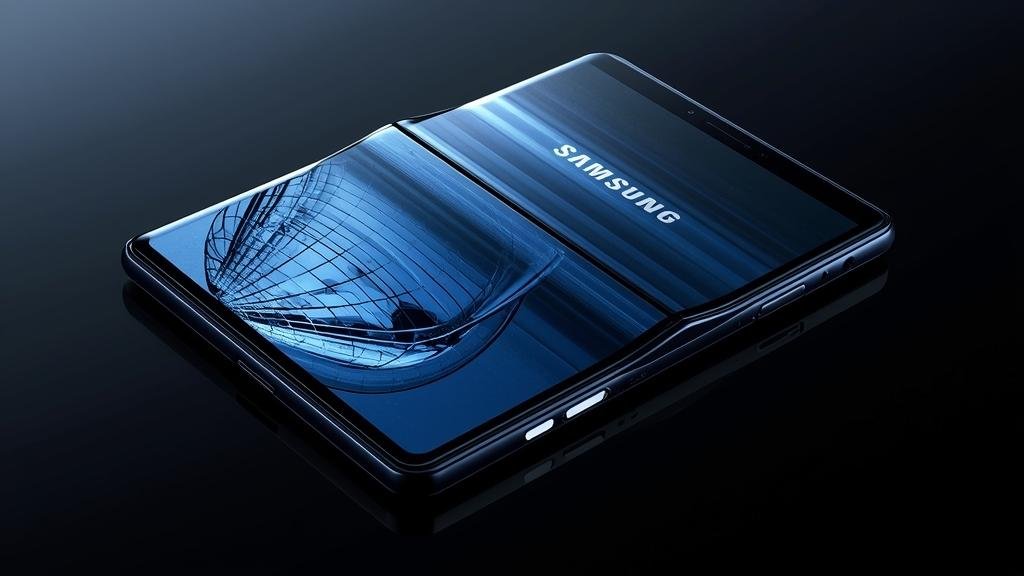
Samsung is trying to move the folding category beyond novelty. The hardware and software here are coordinated so three displays feel like one continuous canvas for apps, multitasking, and content consumption. That shift matters because it changes purchase math: you’re not buying a phone with a big screen anymore — you’re buying a compact multi-monitor setup.
On the user side, this isn’t just about a larger visible area. It’s about new ways to work: true three-app multitasking with fluid drag-and-drop, split-edit workflows for creators, and a more natural app layout when the device is used flat on a desk. Those are the features that dictate whether a tri-panel fold becomes useful day-to-day or remains a curiosity.
This model also forces rethinking accessories and cases, and it amplifies tradeoffs: weight, heat, and battery life matter more when you run sustained multi-window sessions. If you carry work across multiple devices, the promise of pocketable triple-screen productivity is potentially transformative. But it only reaches that potential if apps and the OS handle continuity smoothly, and if the reliability of hinges and panels doesn’t undercut long-term value.
For buyers deciding now, this device is aimed at users who prioritize a portable multi-window experience over traditional smartphone compromises. If your workflow depends on switching between multiple full-sized windows, you should pay attention — otherwise a more conventional phone or tablet will still cover most needs cheaper and lighter.
Key Details (Specs, Features, Changes)
Hardware highlights: an outer cover display for one-handed use, plus a three-panel inner display layout that opens into a wide canvas when unfolded. The chassis uses reinforced hinge tech and a new layer structure for the inner panels to reduce visible fold lines. Expect a flagship SoC tuned for multi-tasking, more RAM options than typical phones, and an emphasis on sustained thermal performance rather than short benchmark bursts.
Software: Samsung updated its window manager to treat three panels as a single grid. Multitasking gestures, improved drag-and-drop across app windows, and native app continuity (apps expand and reposition smoothly when you move between cover and inner displays) are core parts of the experience. Samsung is also pushing developer tools so third-party apps can offer multi-pane UI states.
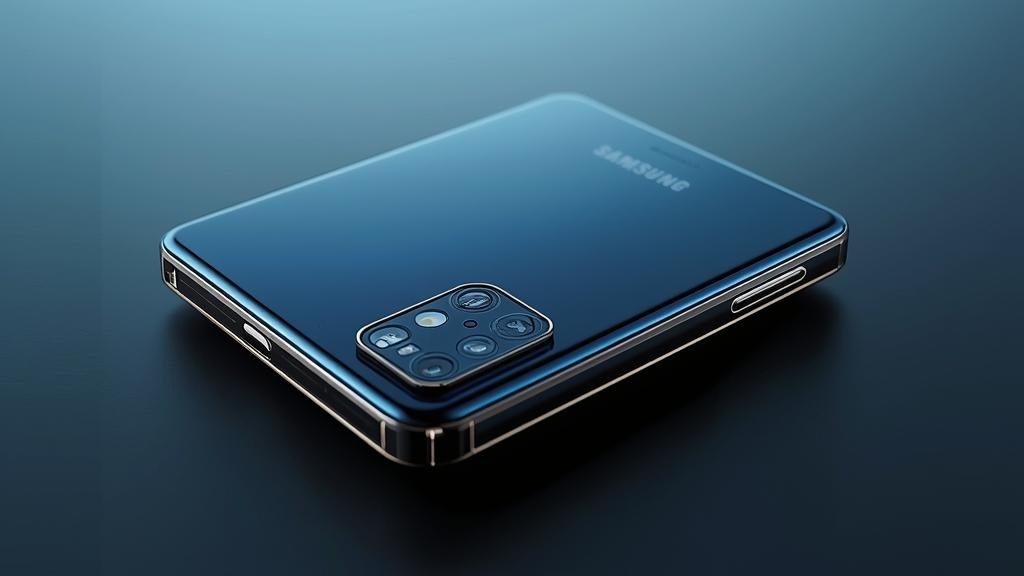
Cameras and audio: multiple rear modules tuned for both single-screen and multi-screen capture modes. Audio focuses on spatial playback that adapts when you change stance — tent mode, flat, or fully open. Charging supports fast wired and faster wireless options, but battery capacity must balance the extra panels, so real-world endurance depends on usage mix.
What changed vs before:
Before: single central folding screen with a cover display and mostly two-app multitasking. Now: full three-panel interface, deeper system-level window management, and developer APIs for multi-pane apps. The hinge and display stack were re-engineered to reduce visible creasing and improve durability under repeated tri-fold cycles.
Before: multitasking was useful but limited to two or three floating windows. Now: native three-column workflows with drag-and-drop, persistent app configurations when you open and close the device, and better app continuity so you don’t lose your place switching between configurations.
How to Use It (Step-by-Step)
Ready to treat a foldable as your pocket multi-monitor? Start with practical setup and daily habits that make the hardware useful, not just impressive.
- Initial setup and orientation
-
- Power on and complete account setup — enable sync for email, calendar, and cloud storage so multi-window sessions pull the right data across panels.
-
- Go to Display > Multi-Panel Settings and enable the advanced grid mode to allow three-app layouts. This unlocks full continuity behavior.
-
- Arrange your workspace
-
- Create common layouts: messaging + notes + browser, or editor + preview + assets. Save these layouts to the quick panel for one-tap recall.
-
- Set app pairings for frequent combos — this ensures that opening one app suggests the correct companions in the adjacent panels.
-
- App behavior and continuity
-
- Use the drag-and-drop handle on the app header to move content between panels. For example, drag an image from Files into a message composer in the center panel.
-
- When closing the device, confirm apps restore to saved configurations; if not, force-close and re-open the saved layout and report the issue to Samsung.
-
- Power and thermals
-
- For long multi-window sessions, toggle the performance profile — higher performance helps but watch battery drain and heat.
-
- Consider a power bank with passthrough if you plan full-day productivity away from outlets.
-
- Daily productivity tips
-
- Use the cover screen for quick replies and to keep background tasks running when the inner panels are folded away.
-
- Adopt tent mode for presentations or media playback — two outer panels become a stable base while the main panel faces the room.
-
- Troubleshooting quick checks
-
- If an app refuses to snap correctly, clear its cache and check for an update that supports the multi-panel API.
-
- If touch response drops on a panel, run the diagnostics in Settings > Device Care > Diagnostics to rule out calibration drift.
-
Note: Third-party app behavior will vary. If you rely on a particular app for multi-pane work, test it directly before committing to a critical workflow. The real payoff is seamless continuity between configurations and efficient drag-and-drop — make that your checklist when evaluating real-world performance.
To use the device as a pocket workstation, aim to build routines: open saved layouts for specific tasks, keep the most-used app pairings on the quick panel, and habitually eject external content into the center panel for editing and review.
Compatibility, Availability, and Pricing (If Known)
Compatibility: The device runs a modern Android build with a custom multi-panel window manager. Most Android apps will run, but only apps updated for multi-pane workflows will make full use of three panels. Expect Samsung’s native apps (email, browser, notes, gallery) to be fully optimized at launch. Third-party support will vary — productivity suites and major media apps usually follow quickly, while niche tools may lag.
Accessories: Cases, docks, and keyboard covers will need to match the triple-fold form factor. Official cases will be available at launch in most markets, but third-party accessory releases may be staggered. If a specific dock or case is essential for you, confirm release timing before purchase.
Availability and pricing: Samsung typically releases flagship hardware in major markets first, then expands regionally. Carrier partnerships may offer installment plans and trade-in deals, and availability windows can differ by country. If local pricing isn’t published at launch, avoid pre-orders that lock you in without return flexibility.
Unknowns you should watch for: Actual street pricing in different regions, carrier-specific feature support (like network optimizations), and long-term repair costs for the tri-panel stack. Samsung’s warranty and repair options will be crucial — check what’s included for hinge and display damage and whether extended plans are worth the added cost.
Common Problems and Fixes

Here are realistic issues you’ll see with complex foldable hardware and exact steps to resolve them. Each entry follows the troubleshooting pattern: symptom → likely cause → actionable fixes.
- Symptom: One inner panel shows ghost touches or reduced touch sensitivity.
Likely cause: Calibration drift, debris in the hinge causing pressure, or software driver glitch after updates.
Fix steps:
-
- Restart the device to clear temporary driver issues.
-
- Run touch calibration from Settings > Device Care > Diagnostics.
-
- Inspect the hinge for debris; gently clean with compressed air — do not insert objects into the hinge.
-
- If persistent, back up data and factory reset. If still failing, contact Samsung repair — don’t attempt panel removal yourself.
-
- Symptom: Apps fail to restore saved three-panel layouts after folding and reopening.
Likely cause: App doesn’t fully support the multi-panel API or the system failed to save session state before folding.
Fix steps:
-
- Update the app from the Play Store or Samsung Galaxy Store.
-
- Manually save layout profiles in the system quick panel, then test by closing and reopening.
-
- Report the bug to the app developer and Samsung with repro steps and logs if possible.
-
- Symptom: Overheating during extended multi-window use or gaming across panels.
Likely cause: Sustained high CPU/GPU load across the larger visible surface, combined with compact chassis cooling limits.
Fix steps:
-
- Enable lower power or adaptive performance mode for long sessions.
-
- Close background apps not in use and reduce screen brightness.
-
- Use short charging breaks with the device in a ventilated position; avoid direct sunlight and hot surfaces.
-
- If overheating is extreme or sudden, power off and let the device cool before resuming. Persistent thermal throttling may need service.
-
- Symptom: Noticeable crease or debris visible inside the fold.
Likely cause: Foreign particles trapped during folding or natural wear making the crease more visible over time.
Fix steps:
-
- Inspect for and remove small debris from edges with compressed air; avoid liquids.
-
- For increasing crease visibility without debris, monitor for touch issues — if none, it’s often cosmetic but report under warranty if it worsens.
-
- Consult Samsung service if there are functional issues or if warranty covers display distortion.
-
Security, Privacy, and Performance Notes
Security: The multi-pane environment multiplies the attack surface simply because you can run more apps in parallel. Lock-screen behavior and biometric unlock must be consistent across cover and inner panels to avoid accidental exposure of sensitive content when you open the device. Use strong biometric fallback (PIN/password) and enable secure startup so encrypted storage isn’t immediately accessible after a reboot.
Privacy: When you run three apps side-by-side, notification content can leak between panels if you don’t configure privacy settings. Turn off full notification previews for sensitive apps when in public. Also consider using per-app permission controls for clipboard and files — multi-window workflows increase cross-app clipboard transfers, which raises accidental data sharing risks.
Performance: With more visible pixels and multiple active apps, CPU, GPU, and memory are under heavier load than a single-screen phone. Expect higher background task counts and larger app working sets. Manage performance by:
-
- Keeping heavy background sync tasks limited.
-
- Updating apps to versions optimized for the multi-pane runtime.
-
- Enabling adaptive battery and battery care settings to preserve long-term capacity.
Tradeoffs: The device balances portability with multi-monitor capability. You’ll accept higher weight, potential heat, and more complex repairs in exchange for a compact three-screen workstation. Be proactive about backups and warranty options — complex hardware benefits from reliable repair pathways.
Final Take
The triple-panel fold is the most ambitious step yet in bringing multi-monitor workflows into a pocketable device. If your work benefits from side-by-side windows, drag-and-drop editing, or a wide canvas for reference materials, this design can replace a light laptop or tablet in many scenarios. That shift depends on good app support and stable hinge/display durability — those are the two variables that determine whether this becomes indispensable or just another niche gadget.
For buyers who prioritize productivity and are comfortable with occasional tradeoffs around weight and cost, it’s worth testing in person and confirming your critical apps behave as expected. For everyone else, a conventional tablet or ultraportable laptop still often makes more sense.
If you want to see how this form factor could change your workflow, try the saved-layout features, test your core apps, and consider an extended warranty. If it clicks, you’ll have a pocketable triple-screen workstation — and that’s a meaningful change to how mobile work gets done.
Also, if you’re comparing models or looking for accessory guidance, check local availability and warranty terms before pre-ordering.
Before we close, one quick reminder on two terms you’ll see a lot in coverage: Samsung Galaxy Z Fold 8 and Tri-fold technology are the phrases to track for follow-up reviews and accessory drops.
FAQs
- Q: Will all apps use the three panels properly?A: No. Core Samsung apps and major productivity suites will, but many apps need updates. Test mission-critical apps before relying on this device for work.
- Q: How durable is the hinge and the tri-panel stack?A: It’s improved over earlier foldables with reinforced hinges and a redesigned display stack, but it’s still a complex mechanical system. Buy extended coverage if you’re worried about daily heavy use.
- Q: Does the battery last through a full workday of multi-window use?A: That depends on workload. Mixed use with web, mail, and notes will generally get through a day. Continuous high-brightness multi-app sessions will need a mid-day top-up or power management tricks.
- Q: Is the device good for gaming across panels?A: Not primarily. Gaming can run across wider canvases, but thermal and battery impacts are significant. For long gaming sessions, a dedicated gaming device or tablet is more practical.
- Q: Should I buy now or wait for app support to mature?A: If you can test your core workflow and it works well, buy now. If your workflow depends on specific third-party apps that aren’t updated yet, wait until those apps support multi-pane APIs or until you can confirm compatibility.